Custom CAD, PDM and ERP integration
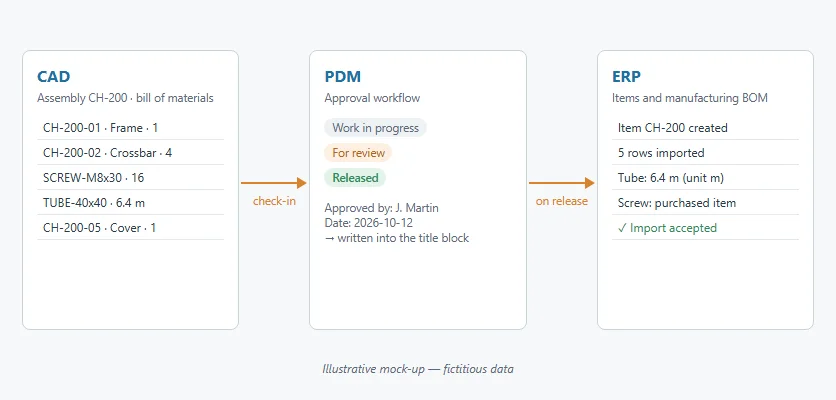
Your bills of materials live in CAD, your items and routings in the ERP, and someone retypes from one to the other every time a revision comes out. A custom integration moves the data from one system to the other at the right moment — when the drawing is approved — and in the exact form your ERP expects.
I have been building these integrations since 2008 for manufacturers in France and across Europe, around Autodesk Inventor and Autodesk Vault. You deal from start to finish with the person who designs and programs yours.
Why a custom connector rather than an off-the-shelf one
Vault–ERP connectors are sold as products. They work when your ERP and your organization look like the ones they were designed for. In practice, every integration runs into the same issues:
- the engineering BOM is not the manufacturing BOM: phantom subassemblies, purchased parts, raw material, quantities by length or area;
- item numbers: who creates them, when, and following which numbering rule;
- fields specific to your ERP, often customized over the years;
- when the transfer happens: on check-in, on approval, on release to production, and what happens when a revision follows.
A custom connector starts from your ERP as it is configured in your company, and from your rules. You don't have to change software, or bend your organization to fit the tool.
What the integration does
Bill of materials export
The BOM is read from the assembly file or from the PDM, transformed according to your rules (grouping, units, items to exclude, properties to carry over), then sent to the ERP: as a file it imports, or directly through its web service or database.
Checks before sending
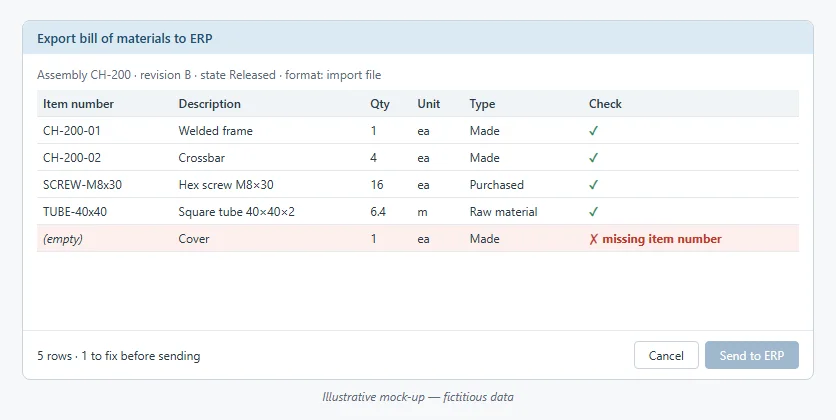
An item without a number, an empty property, a material the ERP doesn't know: the tool flags it before the transfer, with the list of rows to fix, rather than letting the ERP reject the import — or worse, accept it.
The approval workflow in the PDM
In Autodesk Vault, the transfer to the ERP can be triggered by the document's state change. The workflow itself can be tailored: approver's name and date written into the title block, mandatory comment, fields to fill in before moving to the next state. Vault technologies are covered on the Custom Vault Development page.
From the ERP back to CAD
Where needed, information flows back too: item number created by the ERP, price, stock or status, written into the file properties. For add-ins working inside the model itself, see Custom Inventor Development.
Examples of projects
These integrations were developed for manufacturers. I keep my clients' names confidential.
- Export to Clipper — BOMs approved in Vault are exported to a file in the format expected by Clipper.
- Export to Sylob — Transfer of BOMs and items to Sylob.
- Export to Sage X3 — BOMs and item properties go from CAD to Sage X3.
- In-house ERPs — For ERPs developed or heavily customized by the company, the BOM is written to a file or sent to a web service, in the format defined by the IT team.
- Vault approval workflows — A workflow that writes the approver's name and the date into the title block; rules requiring a comment or certain fields before a state change.
More examples, by software, on the Examples of projects page.
How an integration is built
- Your data first — We start from a few real BOMs, from the simplest to the most unusual, and from what the ERP must receive. Together we write down the transformation rules.
- A first transfer — I develop the export on a narrow scope and we check it in your test ERP, line by line.
- The full workflow — Trigger from the PDM, checks, error messages, data coming back from the ERP if needed.
- Fixed-price quotes, by phase — Each phase is ordered separately, once you have seen the result of the previous one.
The full course of a project is described on the Custom CAD & BIM automation software development page.
Autodesk Authorized Developer

WIIP is a member of the Autodesk Authorized Developer program, which gives early access to upcoming Autodesk releases and to the vendor's technical teams. Your integration is ready when the next version of Vault or Inventor ships.
 contact@wiip.fr
 (+33) 6 46 40 75 66
 8 rue du bocage, 62910 SERQUES (France)